
Creating and Editing Bookings #
You can create and edit bookings from several areas of the application:
- Floormap – Click a desk, parking space, or meeting room icon. The resource timeline will open, allowing you to click an available time slot to create a booking or an existing booking to edit it.
- Calendar – Click an available time slot to create a new meeting or click an existing meeting to edit it.
- Booking lists– Click Create to create a new booking or select an existing booking and click Edit to modify it.
Booking Desks and Parking Spaces #
After clicking Create, the New Booking form will open:
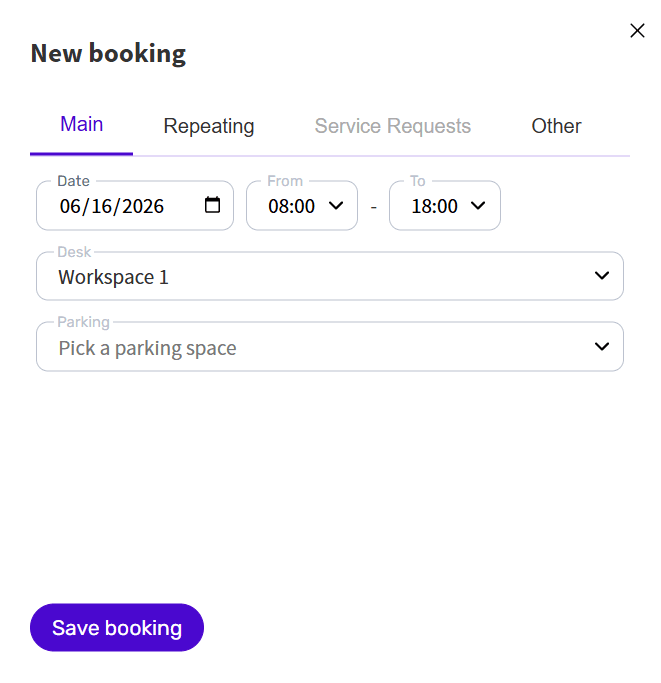
If you started creating the booking from the Floormap, the date and selected desk will be filled in automatically. Verify the suggested booking time and adjust it if necessary, then click Save Booking to save your booking.
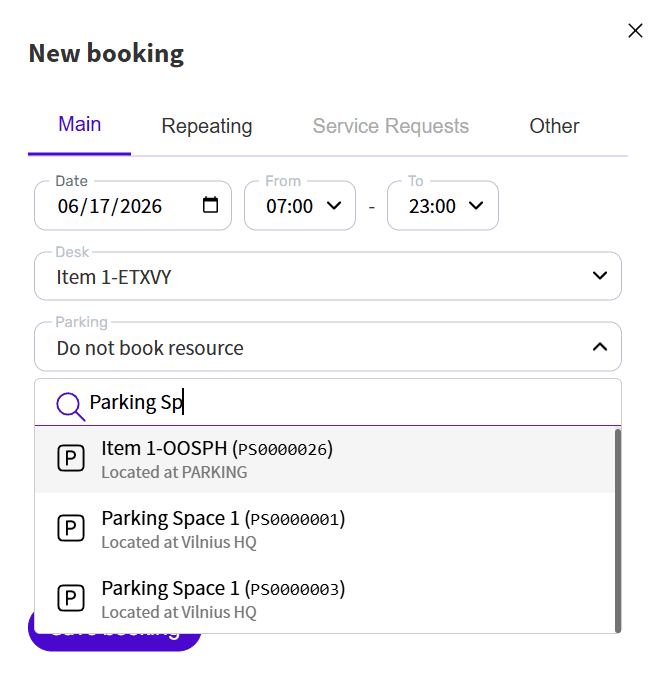
If your organization supports parking reservations, you can also reserve a parking space for the same time period as your desk booking. To do this, click Parking, search for the required venue or parking space, and select it.
Booking Meeting Rooms #
Meeting room bookings are created in the same way as desk and parking bookings. After clicking Create, the meeting room booking form will open.
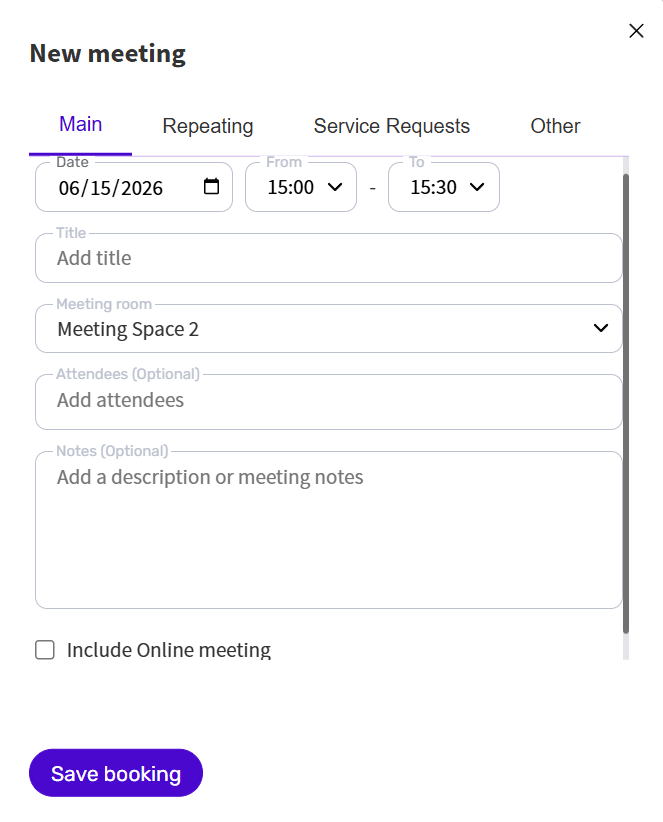
The meeting room and time are prefilled automatically. Verify that the selected meeting room and time are correct, then enter a meeting title in the Title field. Add attendees in the Attendees field and, if necessary, enter additional notes.
If you want to include a Microsoft Teams or Google Meet link, enable Include Online Meeting. When you are finished, click Save Booking to create the booking and reserve the meeting room.
Repeating booking #
If you want to create a recurring booking for a desk, parking space, or meeting room, open the Repeating tab and configure the recurrence settings.
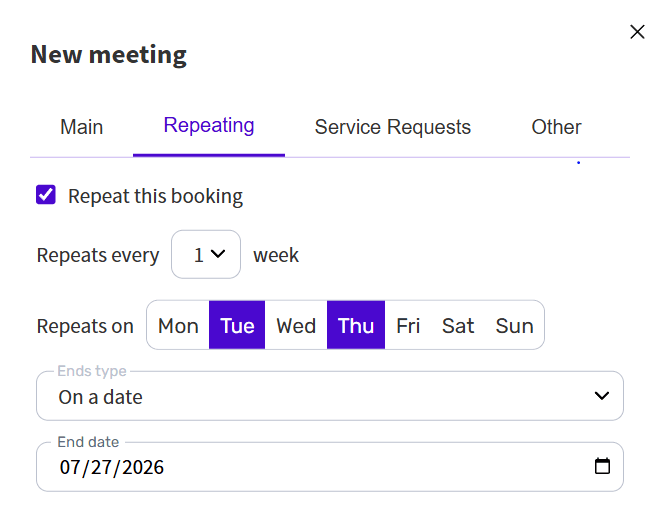
First, in the Repeats Every field, specify how often the booking should repeat (for example, every week).
Next, in the Repeats On section, select the weekdays on which the booking should be created.
Finally, specify when the recurring booking should end:
- On a Date – The recurring booking ends on the selected end date.
- After Occurrences – The recurring booking ends after the specified number of occurrences.
- Never (available only to administrators and assistants) – The recurring booking continues indefinitely.
Other capabilities #
The desk, parking, and meeting booking forms all include an Other tab, which contains additional settings that are used less frequently.
If you have the Administrator or Assistant role, you can create bookings on behalf of other users. Select the person for whom you want to create the booking or who should be the meeting owner. This feature can also be used to create bookings for office guests.
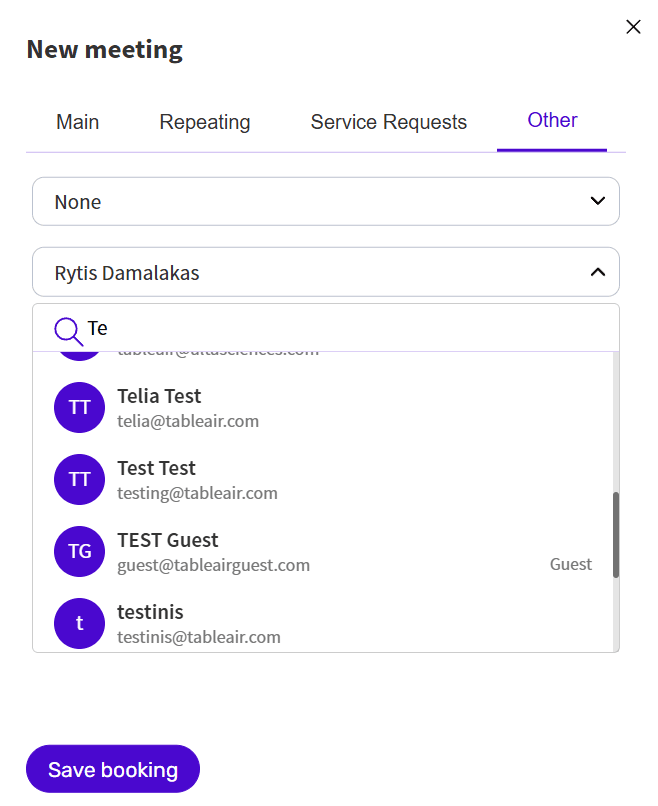
If you have the required permissions and do not want your booking to be cancelled automatically due to a missed check-in, select the Disable Auto Cancellation option.
For meeting room bookings, you can also select a meeting category and choose the color used to display the meeting in the Calendar.
If the meeting contains sensitive information, select the Private Meeting option. This hides the meeting details from other users while keeping the booking visible in the Calendar.