
To access the application, you need an account. Accounts can be created in several ways:
- In most cases, your account will be created automatically when your company connects TableAir to its Google Workspace or Microsoft environment and synchronizes users.
- Alternatively, an administrator can create your account manually or send you an invitation link.
Creating an Account Using an Invitation Link #
If you are an external user, or if your organization’s users are not synchronized automatically, an administrator can send you an email containing an invitation link. Click the link to open a form where you can provide the required information:
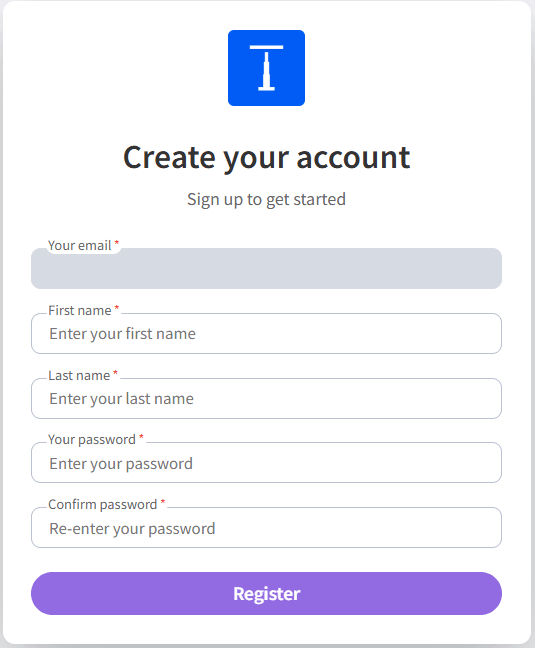
Enter your first name, last name, and password in the required fields, then click Register to create your account.
Logging In to Your Team Environment #
Once you have created an account, you can use it to sign in to your team’s TableAir environment. You can sign in directly by visiting your team’s URL (for example mycompany.tableair.com).
If you do not know your team’s URL, visit tableair.com and click Log in. You will be able to locate your organization using your email address.
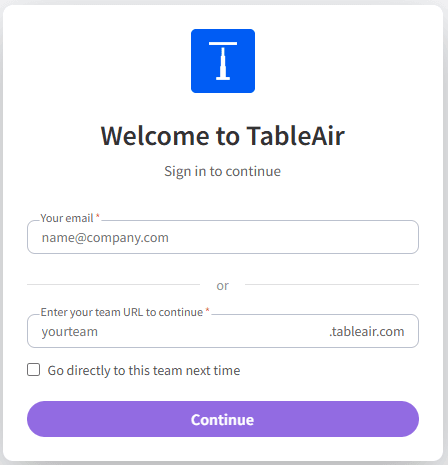
Enter your email address in the corresponding field and click Continue. If you know your team’s name, you can also enter it in the second field to connect directly to that team.
In both cases, you will be redirected to your team’s Log In page. We recommend bookmarking the page, as it allows you to access your team directly in the future without having to repeat this process.
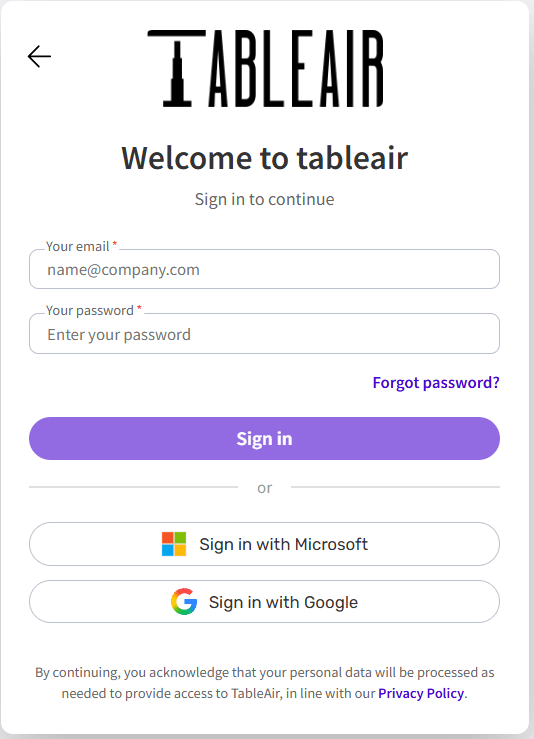
Team administrator can configure which login options are available for users, but typically there are 3 main connection options:
- Log in with email and password
- Log in using the Microsoft sign-in flow
- Log in using Google sign-in flow
Enter your email address and password, then click Sign In to log in to your team. Alternatively, you can click the Microsoft or Google button to initiate the corresponding sign-in flow.
Troubleshooting Sign-In Issues #
If user accounts are created automatically and you receive an error indicating that your account does not exist when signing in, please contact your local administrator. Your account may not have been created yet, or there may be an issue with the synchronization between your organization’s user directory and the TableAir system.
If your account has already been created but you do not know or have forgotten your password, click the Forgot password link to start the password recovery process.
In rare cases, a notification banner may appear at the top of the page to inform you about service outages, scheduled maintenance, or other important announcements.